Import Existing EDM Projects and Export Directional Plans
Import EDM XML files into DirectionalPlan, continue working in the same
project structure, and export supported directional plans for use in
other engineering software.
Supported imports can include wells, wellbores, surveys, designs,
targets, polylines, annotations, geology data, coordinate references,
and location information. Imports are reviewed before they are added,
and existing project data is preserved.
PLAN AND ANALYZE
DirectionalPlanEdit · Visualize · Export
↓ Export
PROJECT
EDM XML
DIRECTIONAL PLAN
Well Seeker
Manual file transfer · No live synchronization
EDM Import
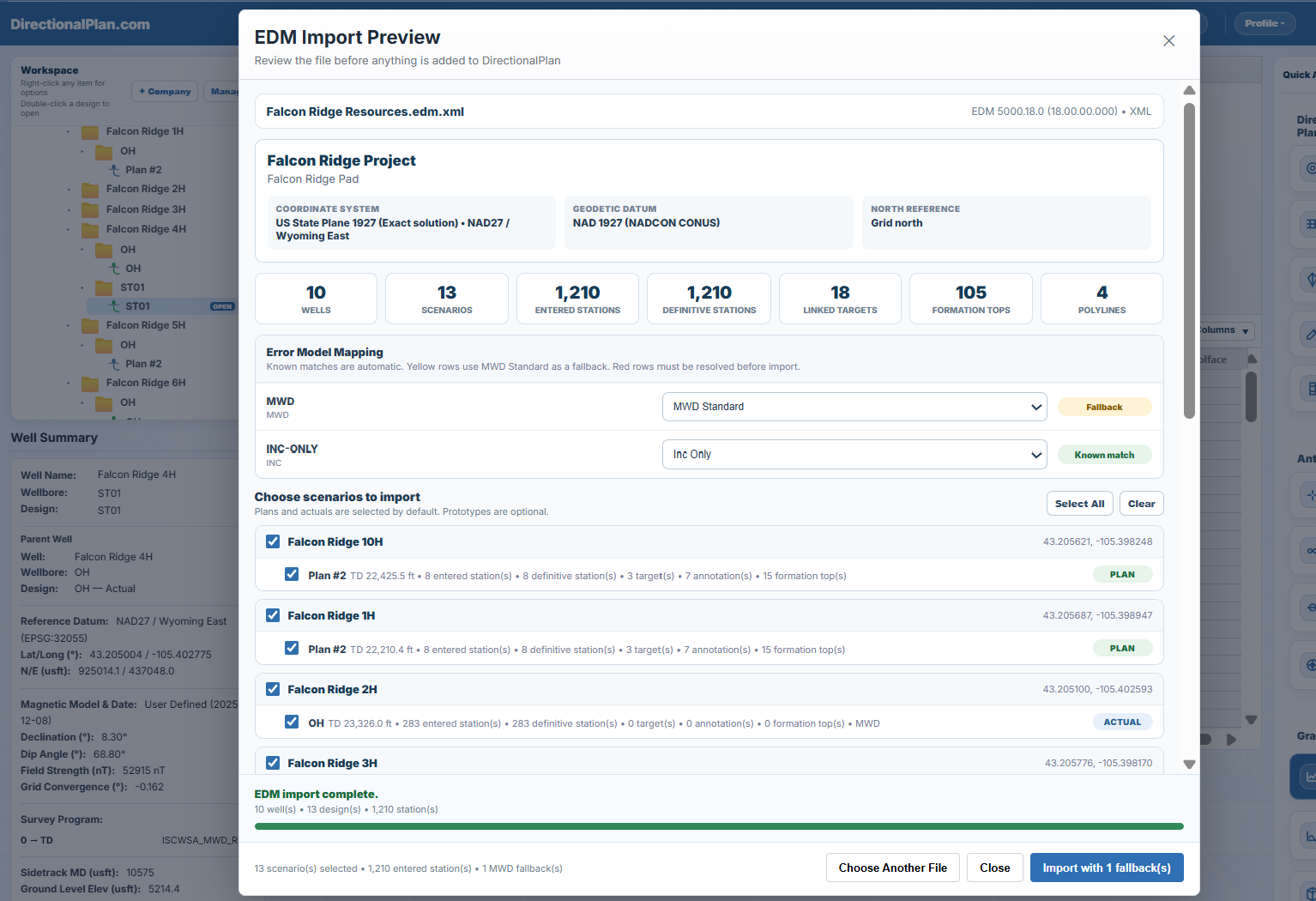
Import Existing EDM Projects
Import complete EDM XML projects without manually recreating
your existing well information. Before anything is added,
DirectionalPlan displays an import preview showing the
available data and the selections that will be imported.
01Select your EDM XML project
02Review the contents and tool-code mappings
03Choose the wells and plans to import
EDM Import Preview showing the engineering data available
before importing a synthetic multiwell project.
Click to enlarge.
Import Preview
Know What's in Your File Before Importing
DirectionalPlan summarizes the EDM project before adding
anything to your workspace. Review the coordinate system,
geodetic datum, north reference, and available records.
10Wells
13Scenarios
1,210Survey Stations
18Linked Targets
105Formation Tops
4Polylines
Example from the synthetic demonstration project.
Counts vary by source file. Entered and definitive
survey-station counts are reported separately in the preview.
What Gets Imported
Along with wells, wellbores, designs, surveys, and sidetracks,
DirectionalPlan imports the supported engineering information
shown below. Select a category to review the imported data.
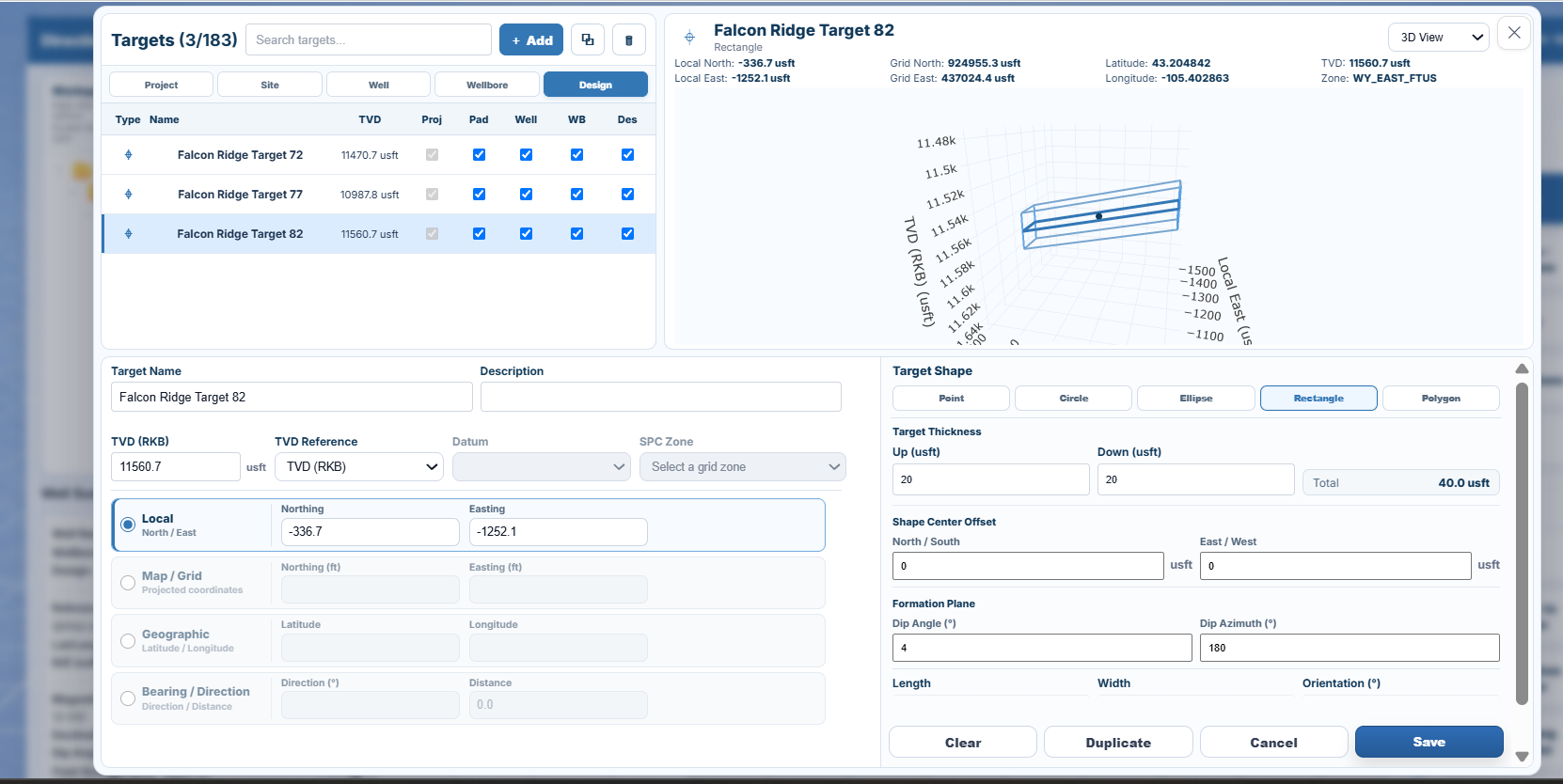
TargetsImported target locations, depths, and geometry
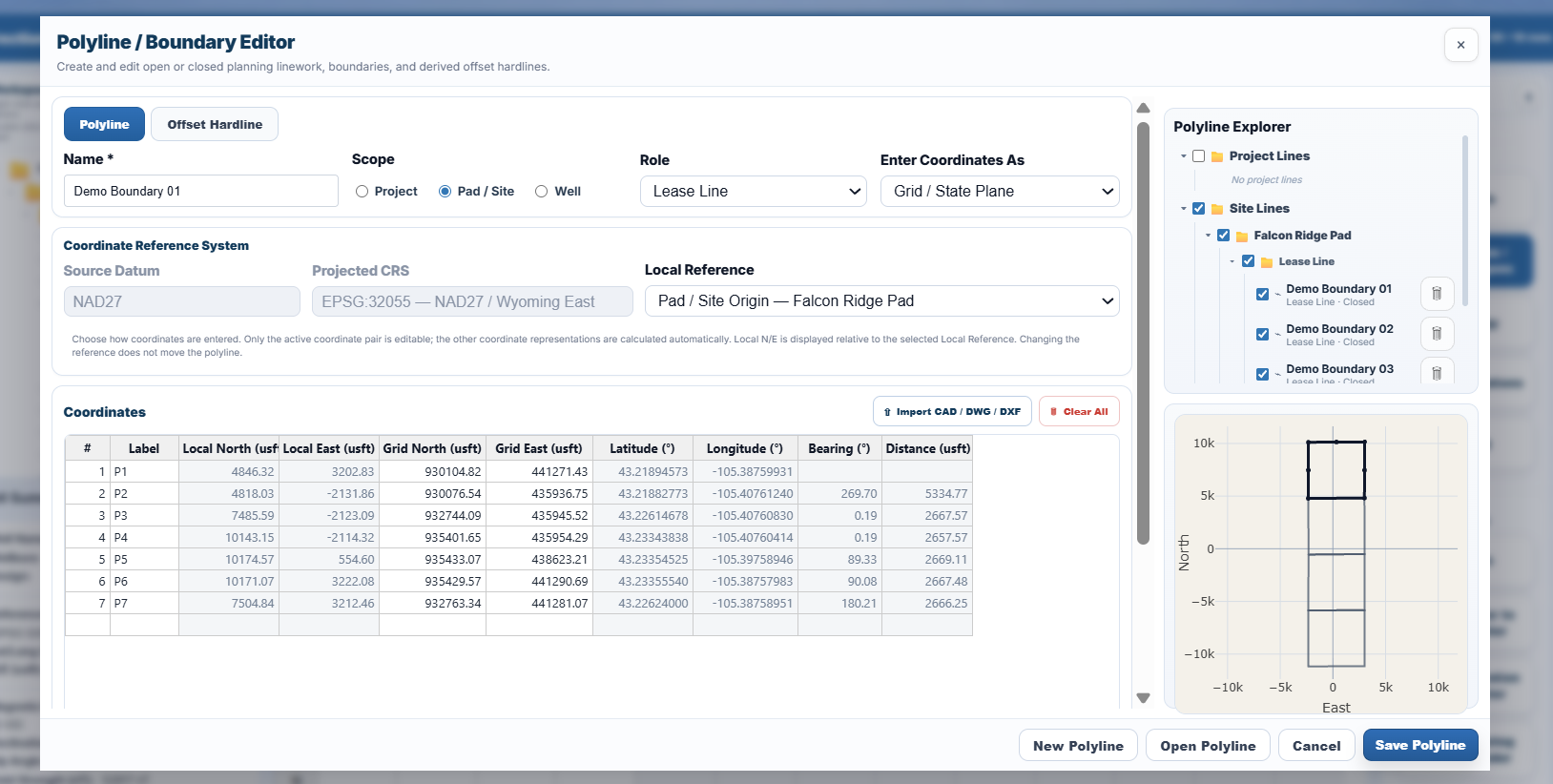
Polylines & BoundariesImported polylines and boundaries with their coordinate information
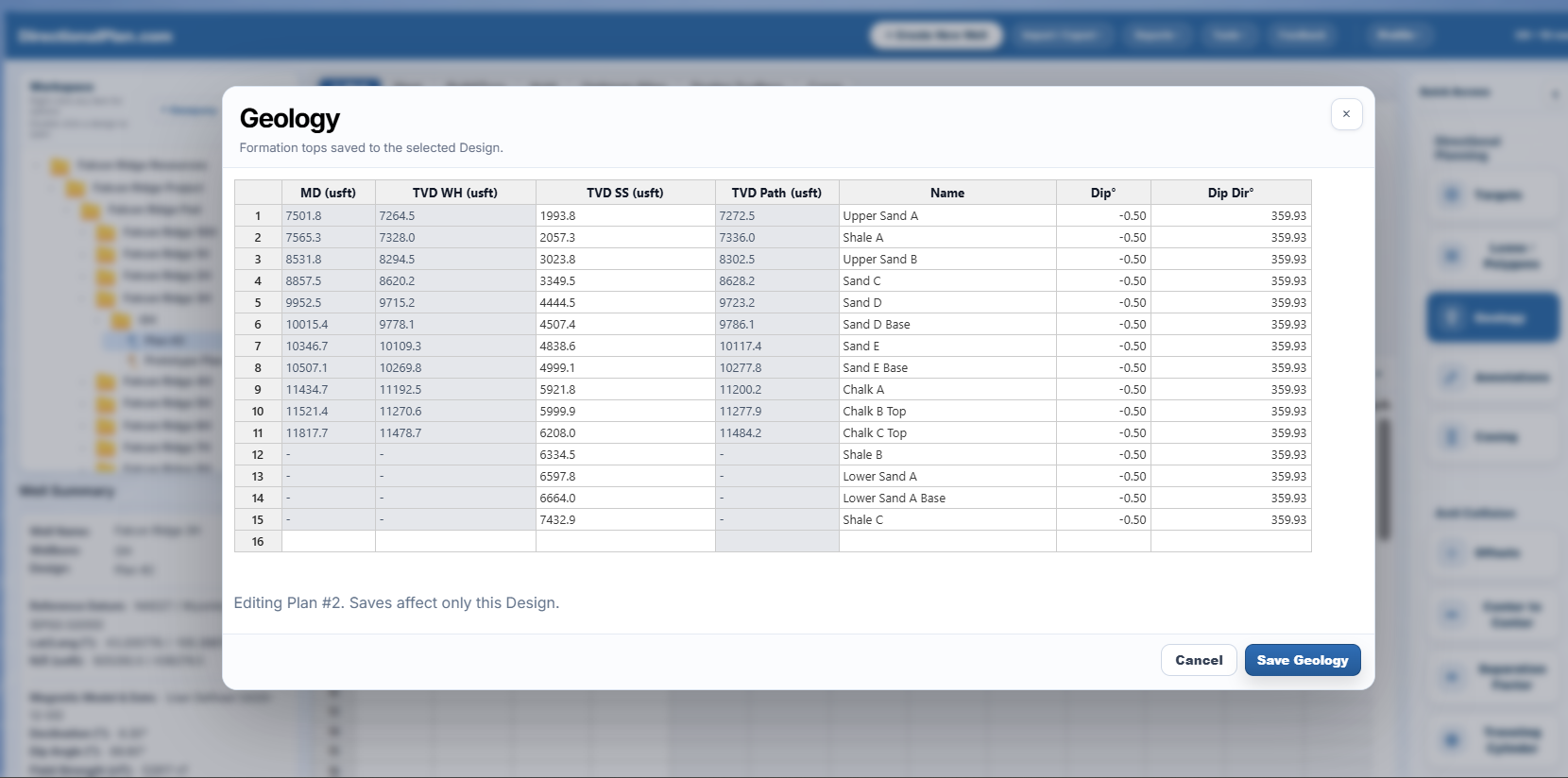
GeologyImported geological formations and formation-top depths
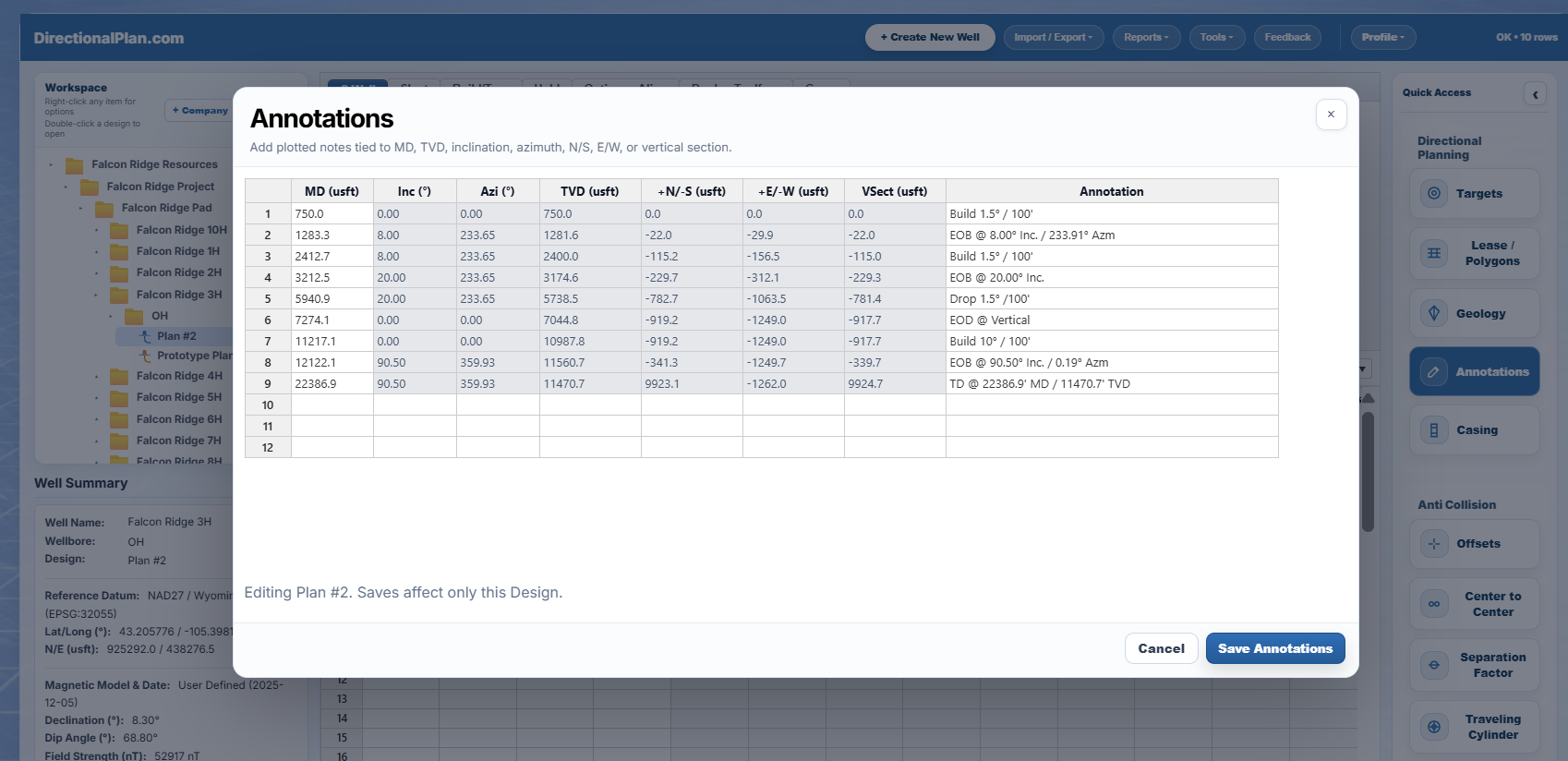
AnnotationsAnnotations associated with survey stations and planning geometry
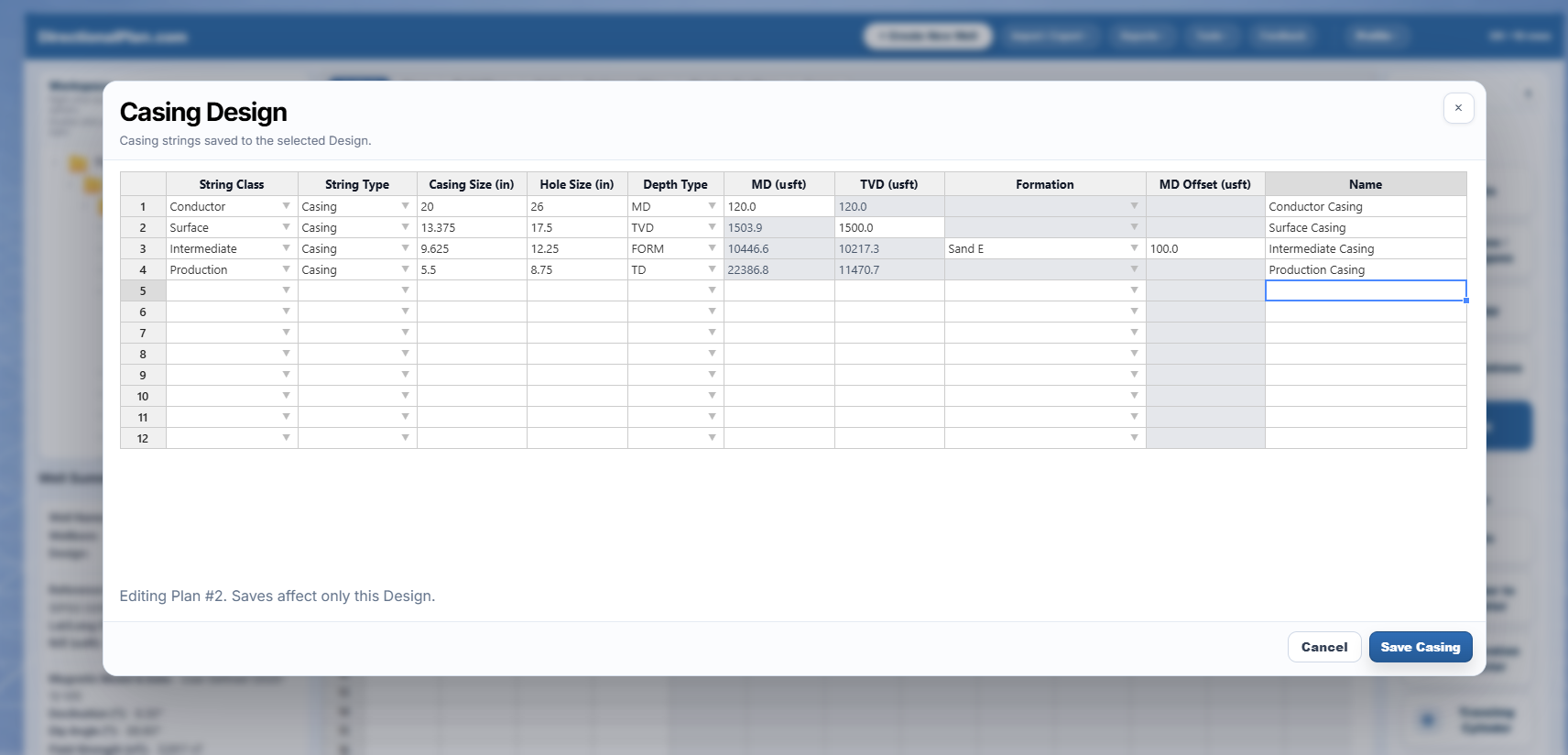
CasingImported casing strings and corresponding depth information
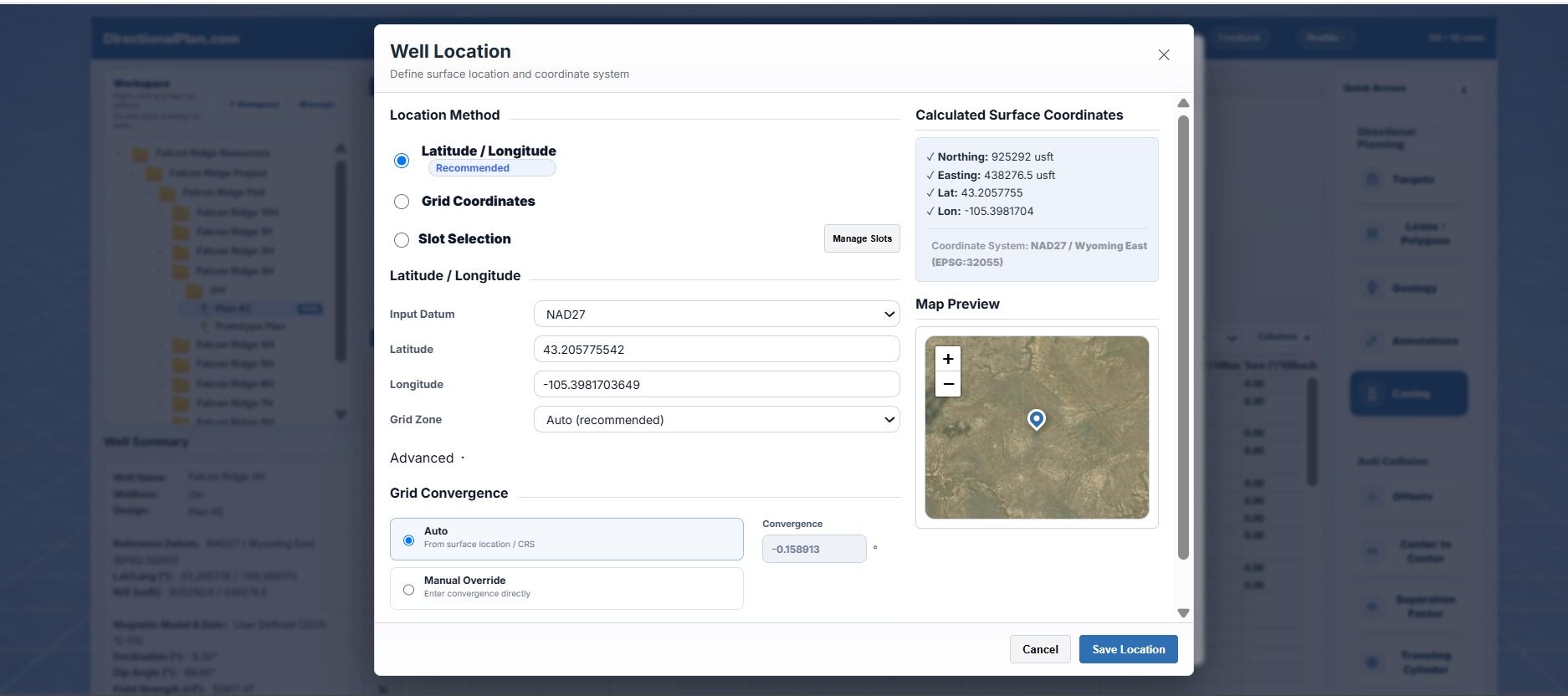
Well LocationImported surface location and coordinate reference information
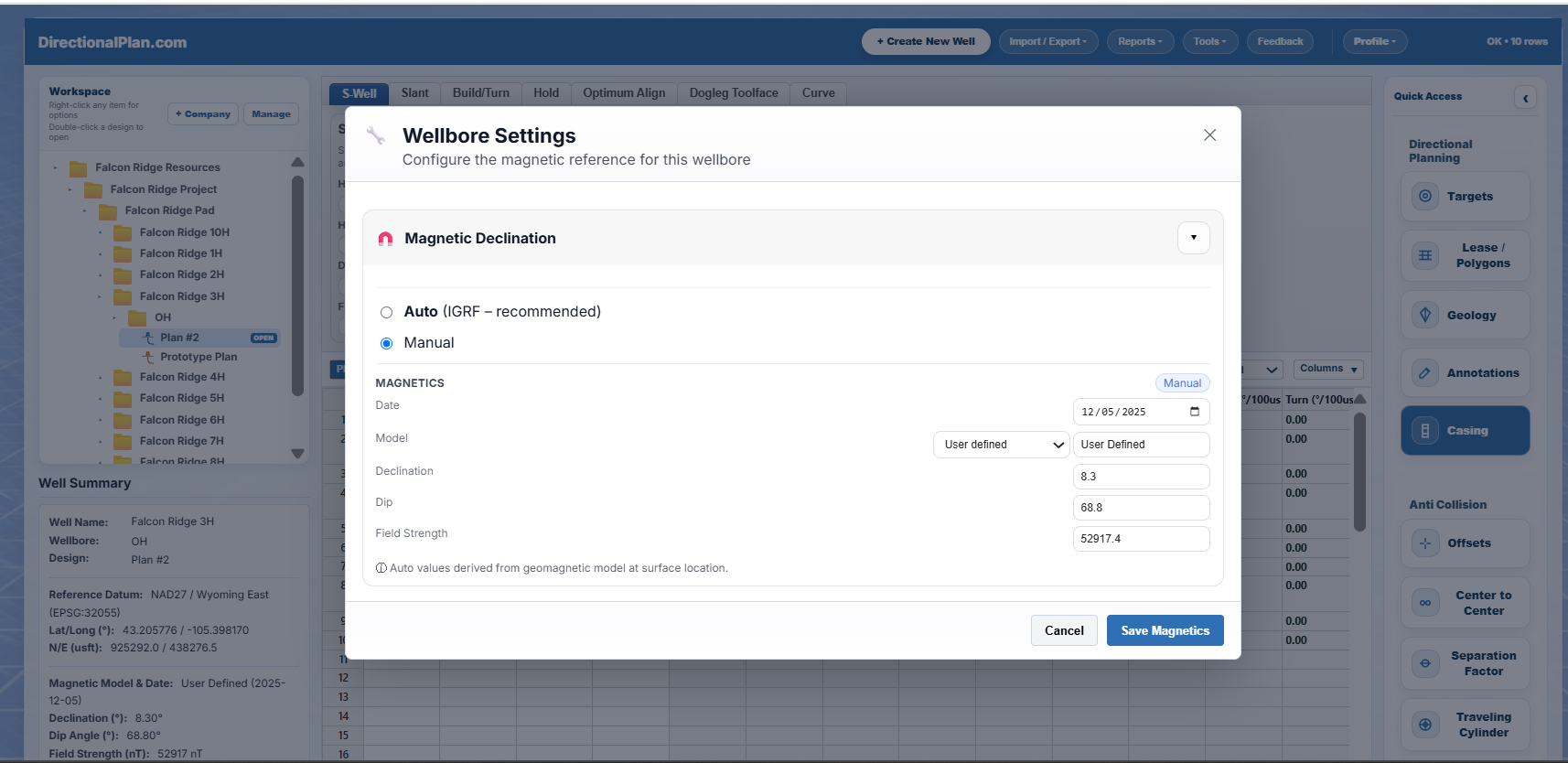
Survey & MagneticsImported magnetic reference values and model information
Examples from the Falcon Ridge demonstration project.
Available information depends on the records contained
in the imported EDM file.
Survey Tool-Code Mapping
DirectionalPlan checks imported survey tool codes
against available error models before importing.
Known Match
Recognized tool codes are mapped automatically.
Fallback
Unrecognized codes may receive a proposed MWD Standard
fallback, highlighted in yellow for review.
Resolve Required
Unresolved mappings are highlighted in red and
must be addressed before proceeding.
A fallback does not establish equivalence between
the source tool model and MWD Standard.
Choose Exactly What to Import
You don't have to import the entire EDM project.
The preview provides checkboxes for selecting
individual wells and their scenarios.
Select or deselect complete wells
Choose individual plans or actual surveys
Review the records associated with each scenario
Import only the selected content
Plans and actual surveys are selected by default
in the preview. Optional scenarios can be reviewed
and selected separately.
Existing Project Data Is Preserved
If a matching company, project, or pad already exists,
DirectionalPlan adds the imported information within
the existing folder structure without overwriting
the information already saved.
When an imported well, target, polyline, or other
supported item has the same name as an existing item,
the original is preserved and the newly imported
item receives an (Imported) suffix
to distinguish it.
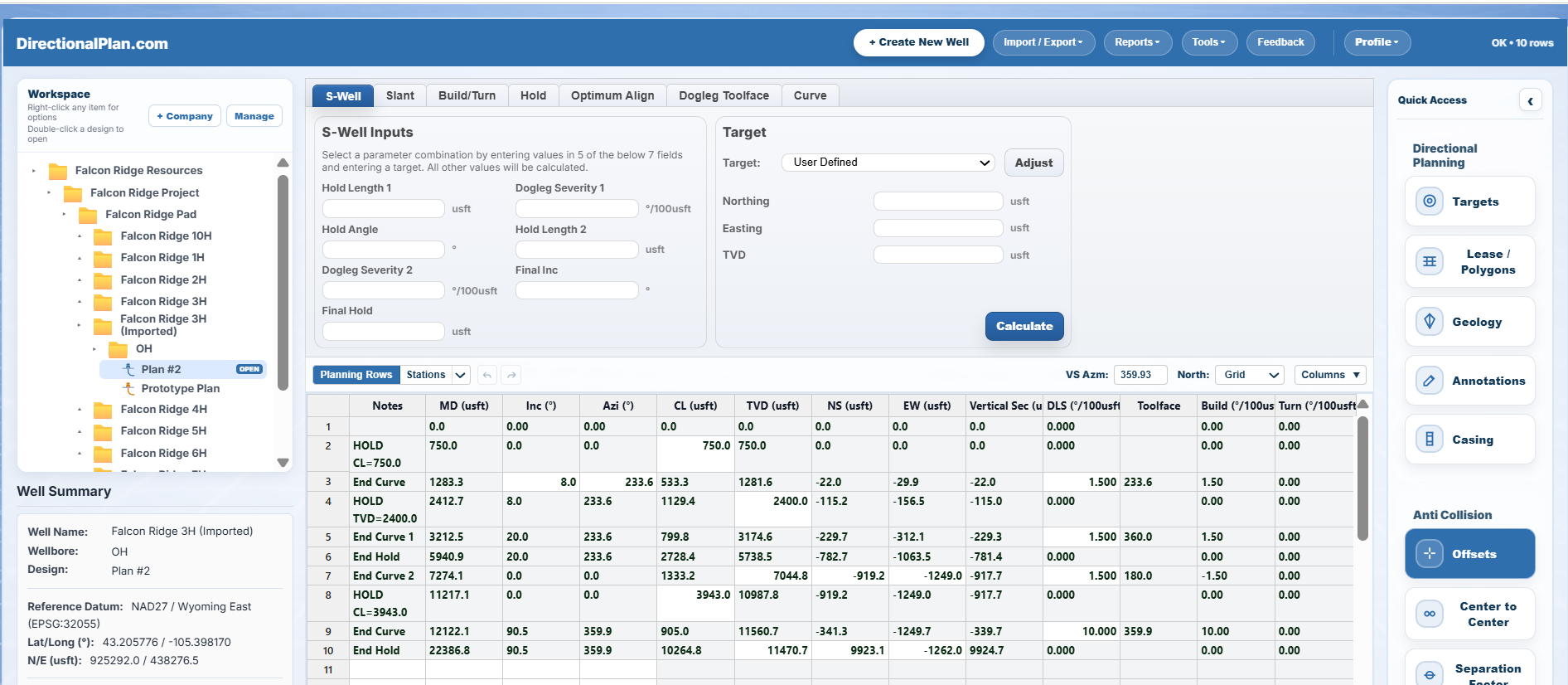
Falcon Ridge 3H→Falcon Ridge 3H (Imported)
The original record remains unchanged.
Imported records are added to the project hierarchy.
Existing project data is preserved during import.
New wells with duplicate names are identified with
an (Imported) suffix and added to
the existing folder structure.
EDM Export
Continue Planning in Compatible Software
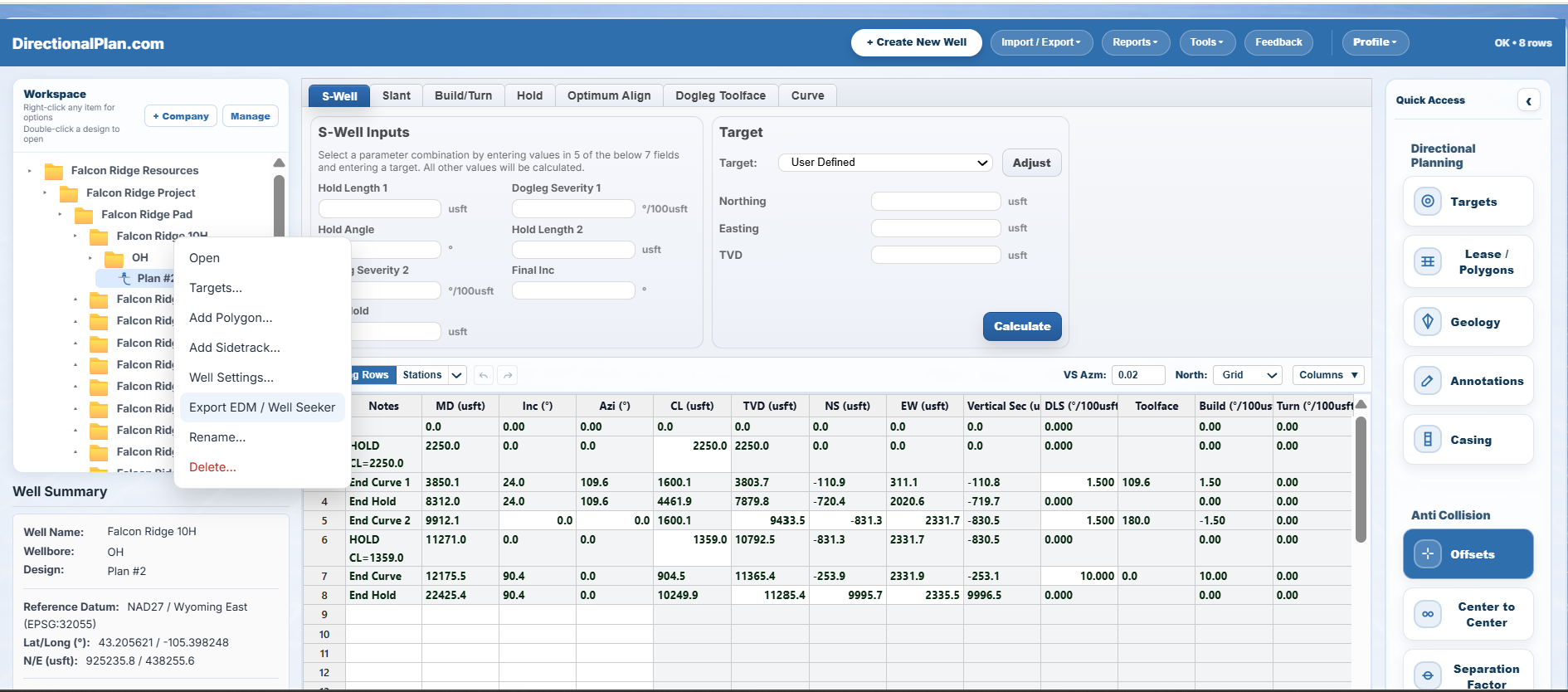
Export your project as an EDM XML file and import it into
compatible engineering applications. Supported well geometry
and engineering references are carried in the exported file,
reducing the need to recreate project information manually.
What the export keeps
DirectionalPlan exports supported directional plans together
with planning methods, targets, casing, coordinate zones,
well location information, offsets, tool codes, RKB,
ground elevation, and polylines when those records are
part of the plan.
DirectionalPlan
→
EDM XML File
→
Compatible Software
File-based transfer only. The receiving application's
supported fields and import settings determine which
information is recognized. Verify reference systems,
survey geometry, and imported project data after transfer.
Compatibility Notes
File Compatibility
DirectionalPlan supports file-based EDM XML import and export.
Available information depends on the source file and the
records supported by the receiving application.
DirectionalPlan is independently developed.
Third-party names describe file destinations and
do not imply sponsorship, certification, or endorsement.
Explore DirectionalPlan
Start With an Existing Project or Build a New One
Explore directional planning, project organization,
and import and export tools